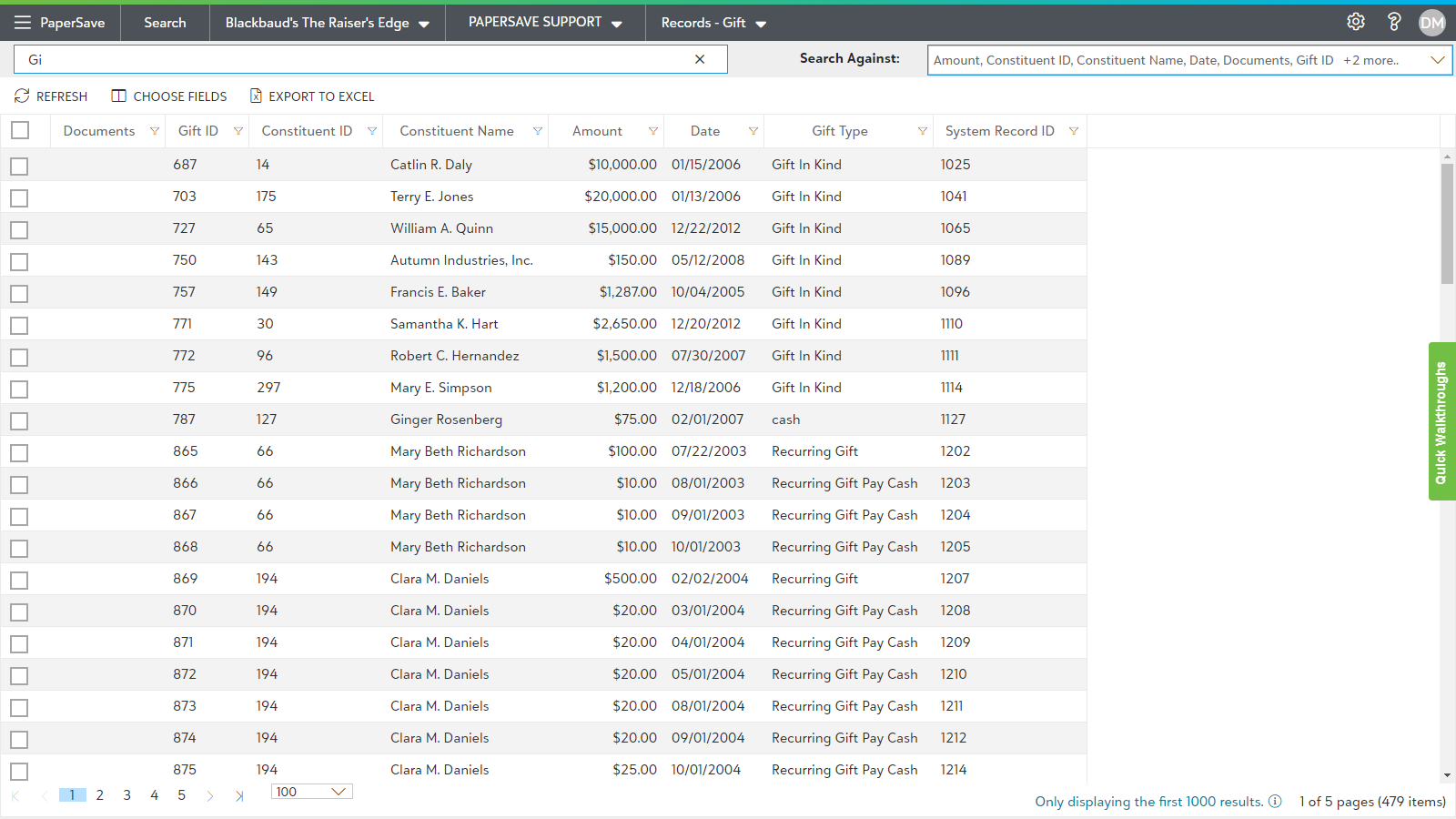
Setting integrated app search criteria
Follow the below steps to perform integrated app record search:
Note: Ensure that you have set your desired preferences in the Settings panel underneath the gear icon.
1) Click on the Search drop-down. You will see a list of integrated applications (defined in the Configuration Area). Select the Raiser's Edge from the Search drop-down.
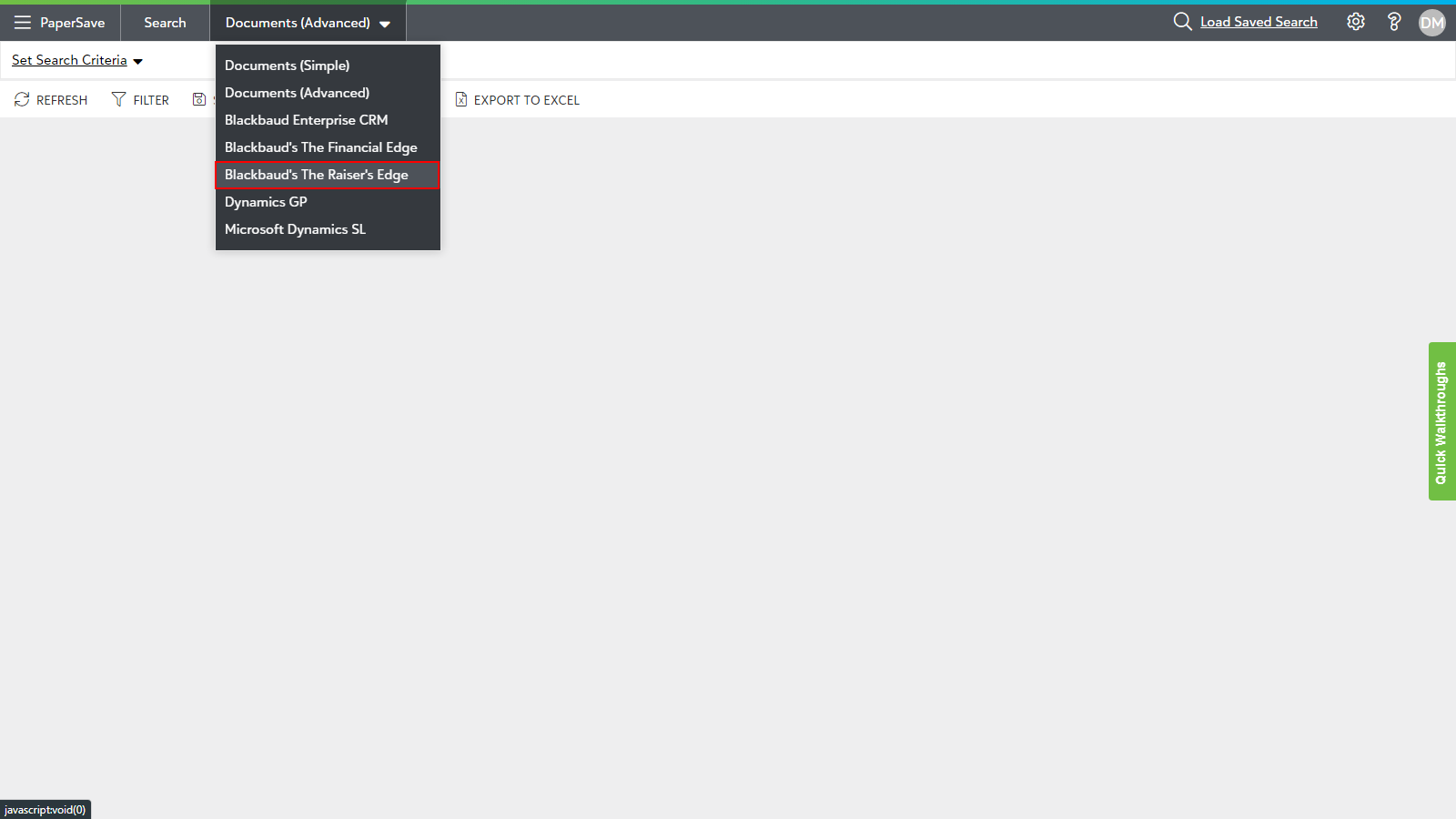
2) Select the desired integrated application instance if there are multiple instances.
3) You will see a list of supported Record types for Raiser's Edge in the Application bar drop-down (tile view if you are accessing for the first time). Select the desired Record Type (For e.g. Gifts).
4) Enter the desired keyword to narrow down the search in the left search box (titled "search for <Record Type> records").
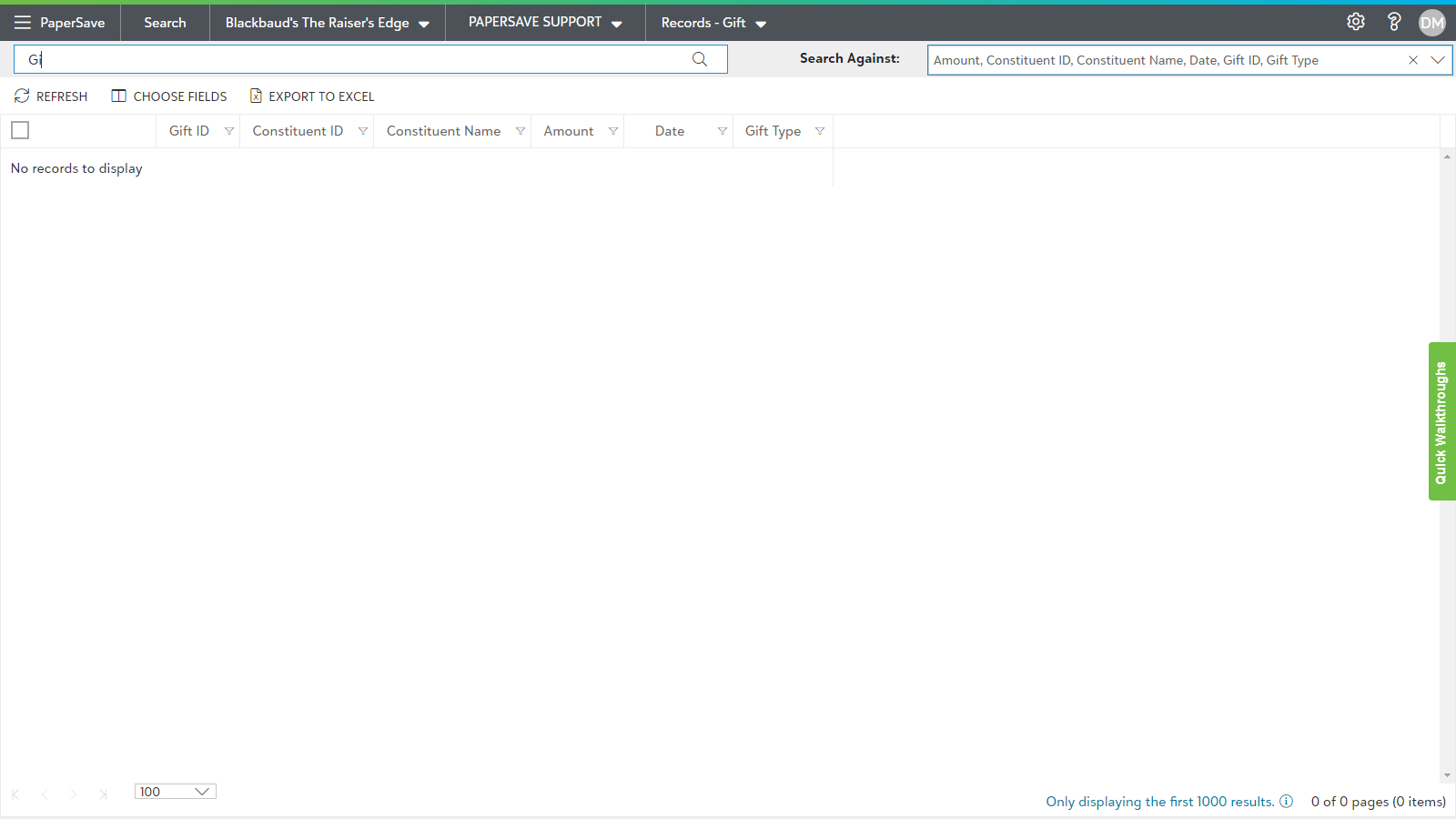
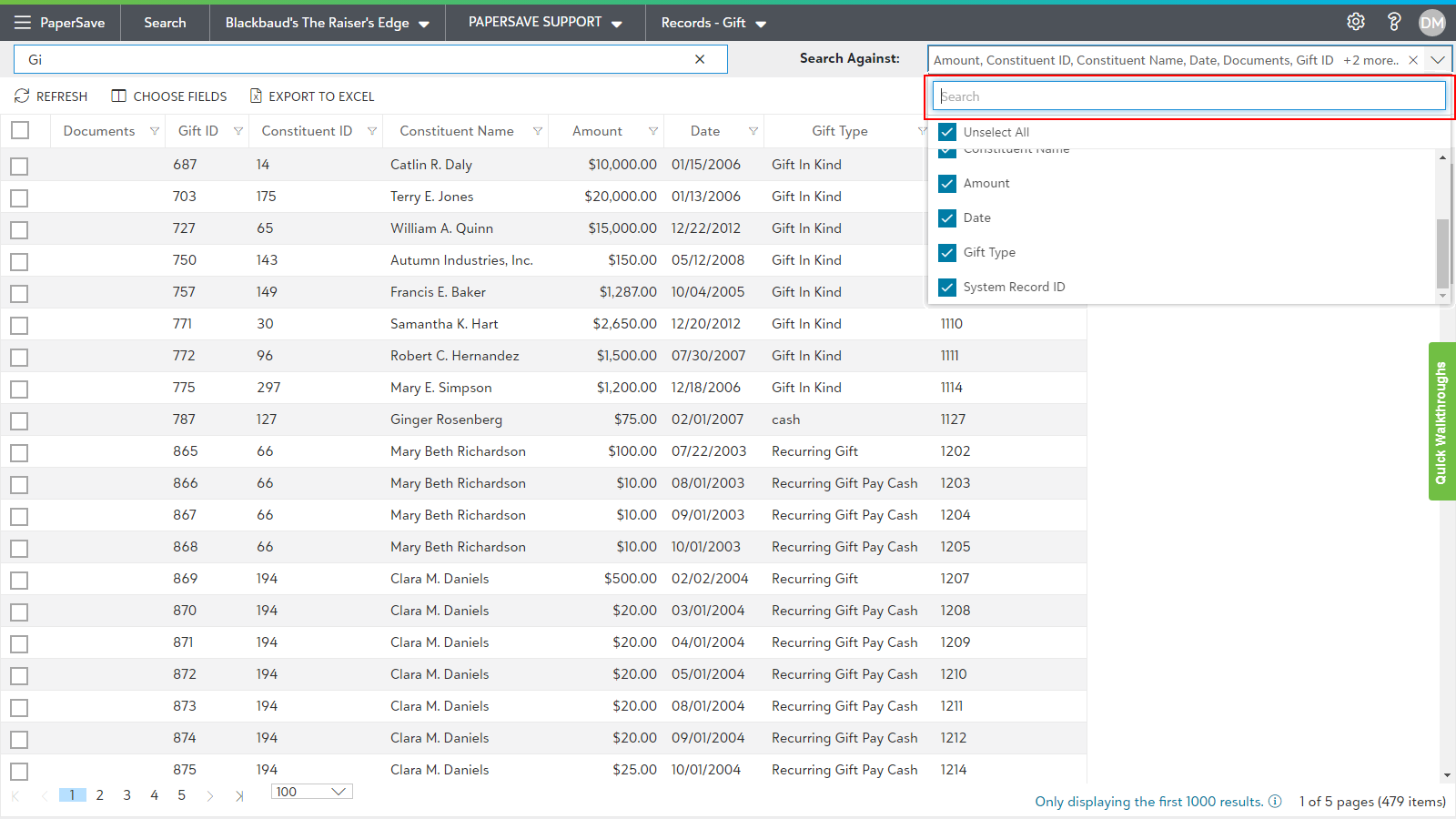
5) Select the fields from the "Search Against" drop-down on the right corner of the screen to further narrow down your Search. Also, you can perform the search against all the fields for the selected Record type.
Note: The "Search Against" drop-down will display all the fields as selected by default. You can deselect the desired fields to increase the specificity of the Search.
- The search result will display a list of matching records as shown in the below screen: